
A SQL statement that looks neatly indented on one developer’s machine collapses into a staircase on a colleague’s — even though nobody touched the code. The culprit is almost always a difference in editor settings: a different tab width, tabs instead of spaces, a non-monospaced font. Readable SQL code in a team doesn’t start with typing — it starts with the editor options.
The essentials up front:
- A monospaced font is the basis of any alignment — without it, nothing lines up cleanly.
- Spaces instead of tabs make a statement look identical in every editor.
- A consistent tab and indent width keeps the same statement from collapsing differently for two developers.
- Block indentation saves you a lot of typing when formatting by hand.
- Beyond SSMS, the same principles apply in VS Code, Azure Data Studio and others — best pinned down project-wide with an
.editorconfig.
Prerequisite: an editor with configurable font and tab settings. SSMS serves as the example here; the principles apply to any SQL editor (Azure Data Studio, VS Code, DataGrip, DBeaver).
Why uniform editor settings matter
Editors in the well-known development environments — SQL Server Management Studio (SSMS) included — use monospaced fonts: every character takes up the same width. That makes text easy to indent and align, for instance with the Tab key, which indents several characters at once. But this is exactly where the trouble starts:
- By how many characters is the text indented?
- Which character does the
Tabkey insert — a tab or spaces? - What happens when developers use different editors?
- What happens when developers have set different tab widths?
So the prerequisite for structured code in a multi-developer environment is that everyone agrees on uniform editor settings — regardless of which editor they use. Four settings matter here:
- Monospaced font
- No mixing of spaces and tabs
- Replacing tabs with spaces
- Block indentation
Monospaced font
Since virtually all integrated development environments use monospaced fonts in their editors by default, this point may seem obvious. It is mentioned here for completeness.
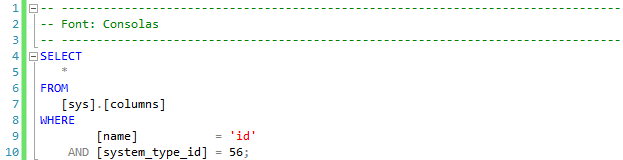
In a non-monospaced font, a character only takes up as much space as its representation requires. The letter i will always take less space than an m. This naturally causes problems when aligning text elements.
![The same WHERE statement in Arial and in Consolas: in the proportional font Arial the fields [name] and [system_type_id] do not line up, whereas in the monospaced Consolas they sit flush beneath one another.](https://staging.sql.marcus-belz.de/wp-content/uploads/2026/06/005002.png)
The conditions of the WHERE clause on the fields [name] and [system_type_id] cannot be aligned flush to the left with the font Arial the way they can in the following example using the font Consolas.
Indentation — and thus structured formatting of SQL code — is therefore only possible with monospaced fonts.
Configuration in SSMS
A note on the screenshots (as of 2026): The screenshots are from SSMS 2012. In SSMS 22.6 (built on the Visual Studio 2022 shell) the options live under the new “All Settings” interface. Of all things, Fonts and Colors has still not been migrated there — SSMS shows the note “These settings haven’t been migrated yet. Links will open in the legacy Options dialog.” and still opens the classic Options dialog. So the paths shown here still apply; only the navigation to them has gained an extra wrapper in newer versions.
The font can be set via the SSMS options: Options | Environment | Fonts and Colors
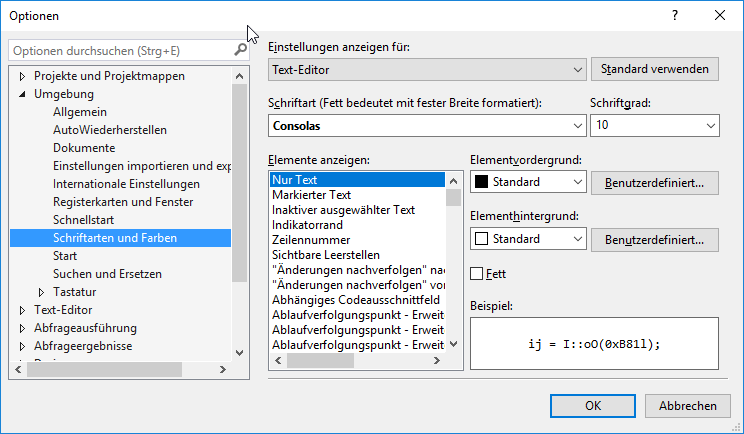
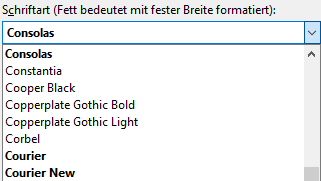
Monospaced fonts are shown in bold in the font list.
No mixing of spaces and tabs
Every developer has their own preferences for formatting SQL code. Some reach for the tab as their indentation tool of choice, others labour away with spaces — and most probably don’t think about it at all. When SQL procedures and the like are edited by several developers, tabs and spaces quickly get mixed. As long as the tab width is set to, say, 3 characters in every editor the developers use, a SQL statement may look consistently formatted. But once one developer uses a tab width of 3 and another a tab width of 4, a statement quickly becomes unreadable and ill-suited to efficient editing. The following statement illustrates this mix of spaces and tabs as a means of indentation:
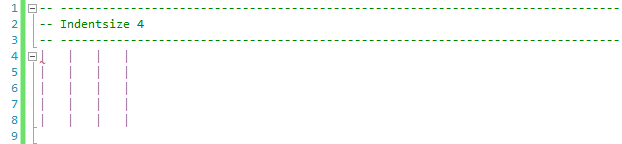
At a tab width of four characters the pipe symbols are obviously aligned. With other tab widths, however, it quickly becomes clear that the alignment is lost.

In this example the differing indentations may seem minimal. With more complex statements, mixing tabs and spaces can quickly tear a SQL statement apart.
The reason for a mix of spaces and tabs need not only be different settings within SSMS — it can also be the use of different editors.
Configuration in SSMS
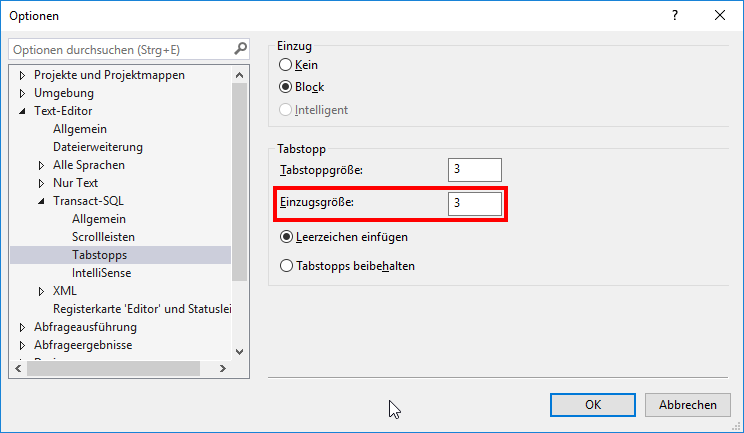
The indent size can be set via the SSMS options: Options | Text Editor | Transact-SQL | Tabs
Recommendation
- Always use spaces for indentation.
- Spaces allow far more precise formatting.
- With spaces, the statement is displayed identically regardless of the editor used.
Tip
- Box selection (called “column selection” in SSMS, “box selection” in VS Code and Azure Data Studio) lets you enter and indent several lines or text blocks at once.
- See also the article The Functional Aesthetics of SQL.
Replacing tabs with spaces
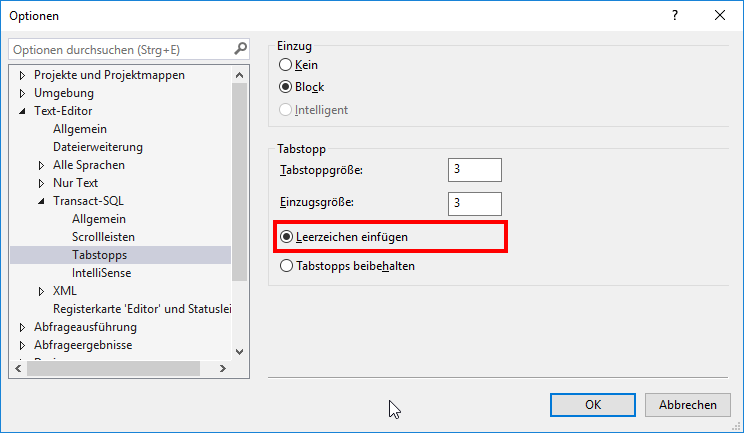
If the editor automatically replaces tabs with spaces, SQL statements are always displayed correctly — regardless of the editor chosen and the tab width set.

Recommendation
- Always replace tabs with spaces. Only this allows precise formatting of SQL code and ensures that a statement is represented correctly regardless of the editor used.
Configuration in SSMS
Replacing tabs with spaces can be set via the SSMS options: Options | Text Editor | Transact-SQL | Tabs
Note
The indent size is to be distinguished from the tab width. The tab width only specifies how many characters a tab character occupies. Pressing the Tab key indents by the indent size. If, for example, the indent size is 10 and the tab width is 5, then pressing the Tab key inserts 2 tab characters, each with a tab width of 5 characters.
Block indentation
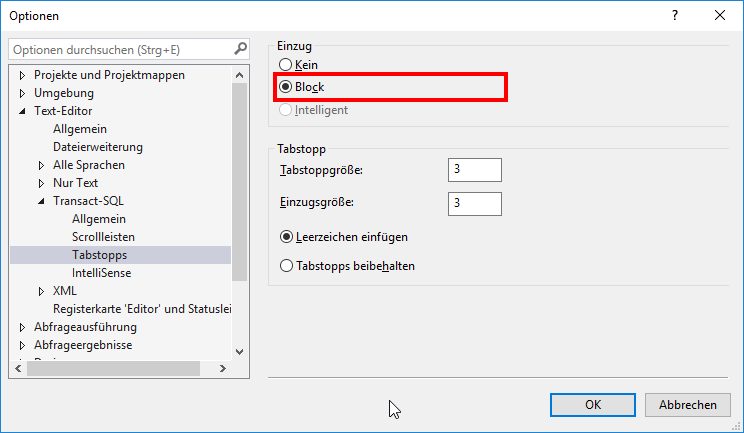
Granted, using spaces to structure SQL statements means extra effort. SSMS helps the developer here with the block-indentation option. What’s it all about?
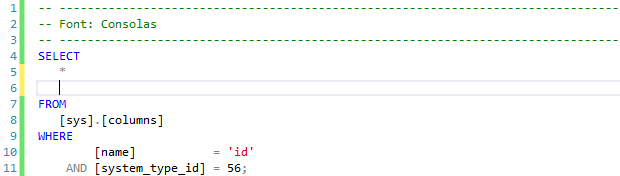
If the cursor sits behind the character *, for example, and the developer presses the Enter key, not only is a new blank line inserted — the cursor is automatically aligned with the first character of the previous line. Without the block-indentation option, the cursor would always be placed at position 1 of the new line.
In fact, the spaces and/or tabs for this indentation are only inserted once the developer starts typing a character.
Recommendation
Use block indentation to align each new line with the previous one.
Configuration in SSMS
Block indentation can be set via the SSMS options: Options | Text Editor | Transact-SQL | Tabs
Beyond SSMS: the same settings in every editor
SSMS has long ceased to be the only editor for SQL. Anyone working with SQL Server or Postgres today often uses Azure Data Studio, VS Code (with the mssql or PostgreSQL extension), DataGrip or DBeaver. The good news: the three settings from this article — a monospaced font, replacing tabs with spaces, a consistent tab and indent width — exist in every one of these editors. Only the menu items are named differently.
Set it once for all: .editorconfig
Instead of redoing the settings in each editor individually, you can solve the core problem — “every developer has different settings” — at the root: with an .editorconfig file in the project repository. It defines indentation, tab behaviour and character encoding across editors. Visual Studio and JetBrains IDEs such as DataGrip read it natively; VS Code needs the free “EditorConfig for VS Code” extension for it. A minimal set for SQL files:
[*.sql]
indent_style = space
indent_size = 3
trim_trailing_whitespace = true
These four lines define, in every editor that supports .editorconfig: spaces instead of tabs, three characters of indentation, no trailing whitespace — exactly the recommendations from the sections above, only automatic.
One catch, of all things, for SSMS: its T-SQL editor still does not honour .editorconfig. So if you work in SSMS, you stay with the Tabs dialog from above — .editorconfig doesn’t (yet) take effect there, though it does in VS Code, DataGrip and others.
Auto-formatters: layout at the push of a button
Tools like sqlfluff (for SQL in general) or pgFormatter (for Postgres) format a statement automatically according to defined rules. That saves typing and enforces a uniform style across the whole team. One limitation remains, though: an auto-formatter only produces layout — it doesn’t replace the understanding that comes from structuring a statement by hand. In the age of Copilot and Cursor especially, generated, neatly formatted SQL code that nobody reads any more is a risk in its own right (more on this in the article The Functional Aesthetics of SQL).
And in Postgres?
The principles are the same — only the tooling differs. In pgAdmin, DBeaver or psql you likewise set a monospaced font and space-based indentation. The common formatting convention for Postgres is snake_case in lower case; an .editorconfig and pgFormatter apply here just as they do for SQL Server.
FAQ
Spaces. Indentation made of spaces looks identical in every editor and at every tab width, whereas tabs are rendered at different widths depending on the setting. As soon as several developers work on the same procedures, that’s the decisive difference between readable and collapsing code. The most convenient approach is to have the editor replace tabs with spaces automatically.
Via Options | Text Editor | Transact-SQL | Tabs. There you set the tab width and the indent size and enable “Insert spaces” so that tabs are replaced automatically. The tab width specifies how wide a tab character is rendered; the indent size, by how many characters the Tab key indents.
Via Options | Environment | Fonts and Colors. In the font list, monospaced fonts (such as Consolas) are highlighted in bold — only with them can SQL code be aligned cleanly, because every character has the same width.
Yes. A monospaced font, tabs-as-spaces and a consistent tab width exist in every serious SQL editor — just under different menu items. To pin the settings down team-wide and across editors, add an .editorconfig to the project repository: Visual Studio and DataGrip read it natively, VS Code with the “EditorConfig for VS Code” extension. One exception is the T-SQL editor in SSMS — it doesn’t currently honour .editorconfig, so there only the Tabs dialog does the job.